
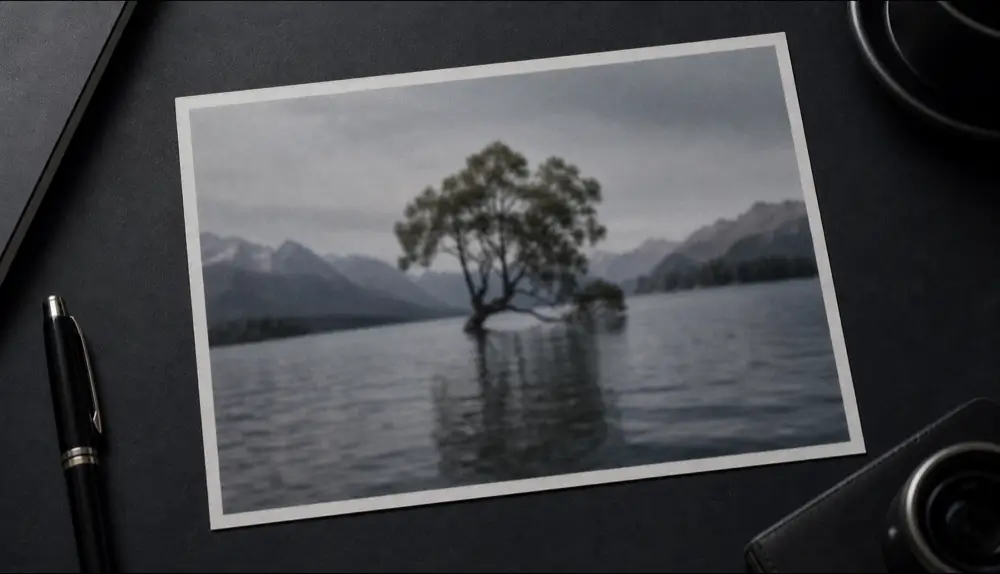
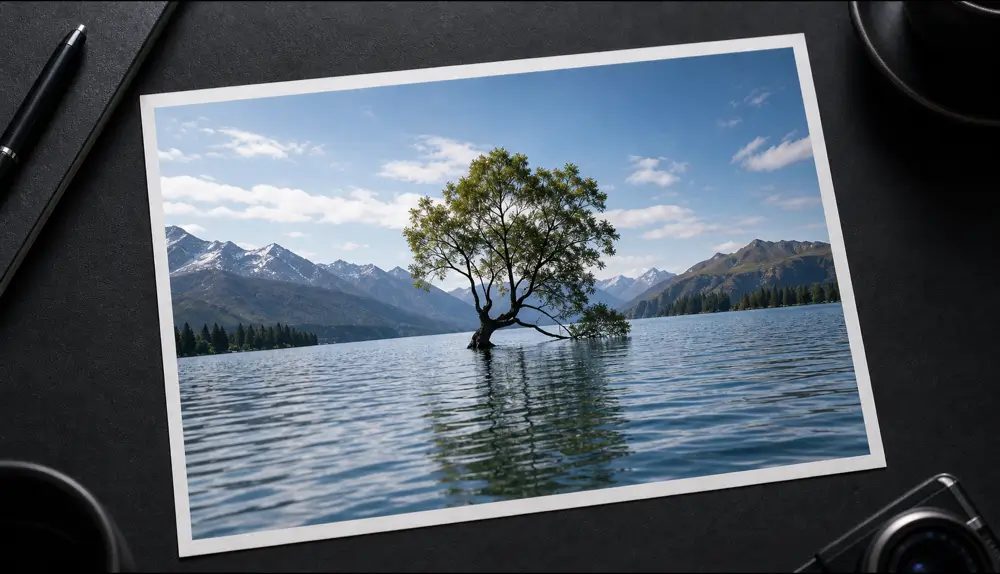
Why “resize” doesn’t work
Ordinary resizing just spreads the existing pixels over a bigger area, so edges get soft and blocky. AI upscaling predicts the missing detail — textures, edges, facial features — and rebuilds it, which is why the result looks sharper rather than just larger.
Upscale an image with Qutu
- Open Qutu Web or the Qutu iPhone app and choose Enhance photo.
- Upload the small or blurry image.
- Qutu upscales it, sharpens detail and cleans up noise and compression blocks.
- Compare before and after and save the HD version.
When it helps most
- Cropped photos where the subject ended up small
- Images saved from social media or chats that were compressed
- Older phone photos taken in low light
- Product photos that need to look crisp on a store listing
- Prints and posters that need more pixels
Tips
- Start from the least-compressed copy you can find.
- Old, damaged prints? Use old photo restoration first — it also repairs scratches and color.
- Text that needs to be read? Use Sharpen text; it’s tuned for letters rather than scenes.
- AI adds plausible detail, not a recording of the original scene — keep the original file for reference.