

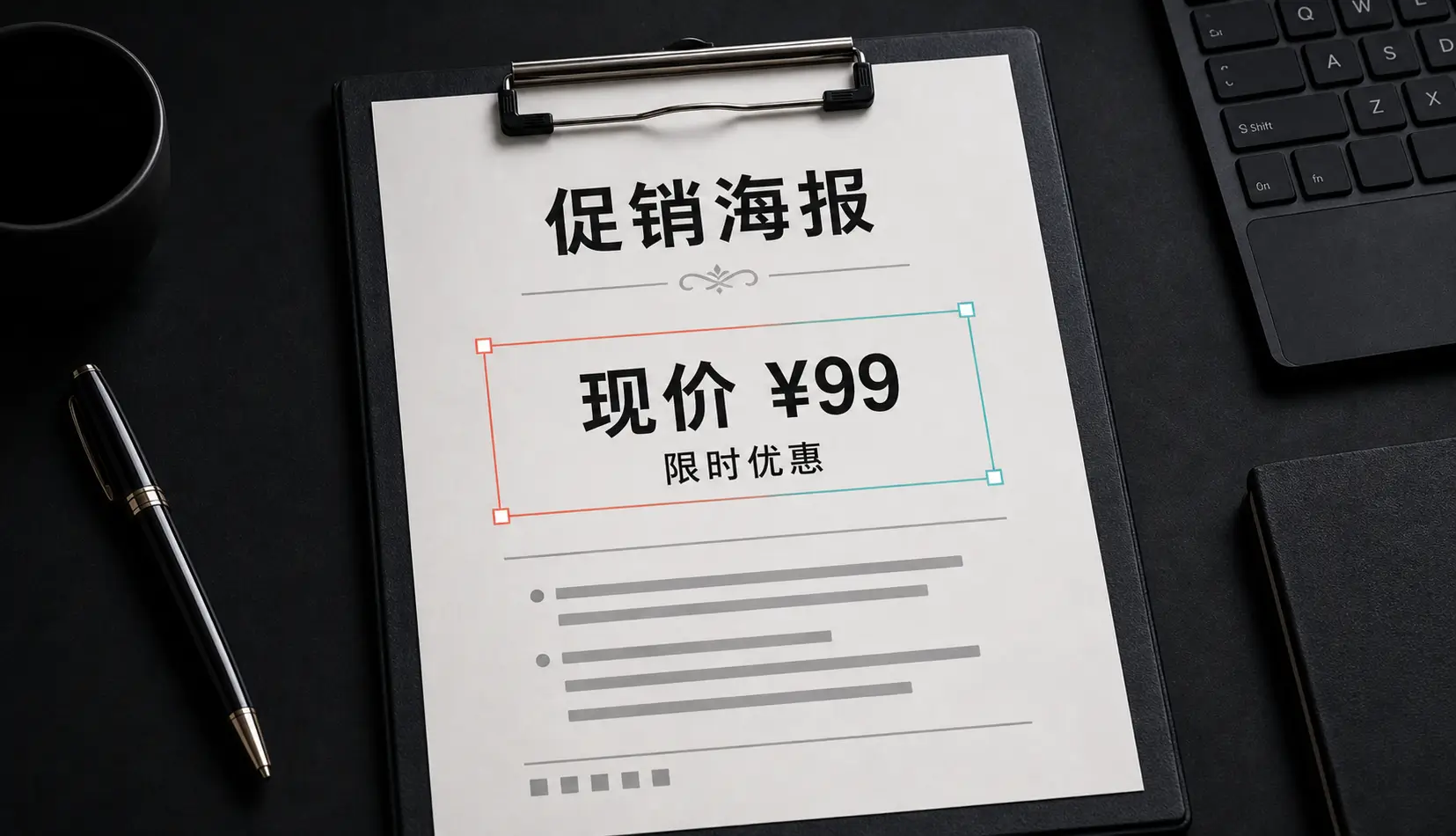
The old way
Without the source file, the traditional fix in Photoshop or a similar editor goes like this: sample the background, paint over the word, try to identify the font, type the correction, then fiddle with size, color, tracking and blur until it stops looking pasted on. It works, but it takes time and a fair bit of skill — and on a phone it’s painful.
The faster way: edit the text where it is
Qutu treats the words in your image as editable text.
- Open Qutu Web in your browser, or the Qutu app on iPhone.
- Upload the image. Every block of text is detected and outlined.
- Tap the block with the typo. The current wording is pre-filled.
- Correct the word and generate.
- Compare before and after, then save.
Because the AI rebuilds the area rather than covering it, the corrected word picks up the same texture, lighting and color as the rest of the design.
Tips for a seamless fix
- Keep the length similar. Swapping one word for a word of similar length gives the most natural spacing.
- Fix one block at a time if the design has very different text styles close together.
- Start from the best copy. Screenshots of screenshots lose detail; use the exported file if you can.
- Proofread the result. AI can occasionally misdraw a character — read the corrected line out loud before you send it.
When you still want a design tool
If you need to restyle the whole layout, change fonts on purpose or move elements around, rebuilding the graphic in a design app is the better route. For “this one word is wrong,” editing the image directly is faster.