

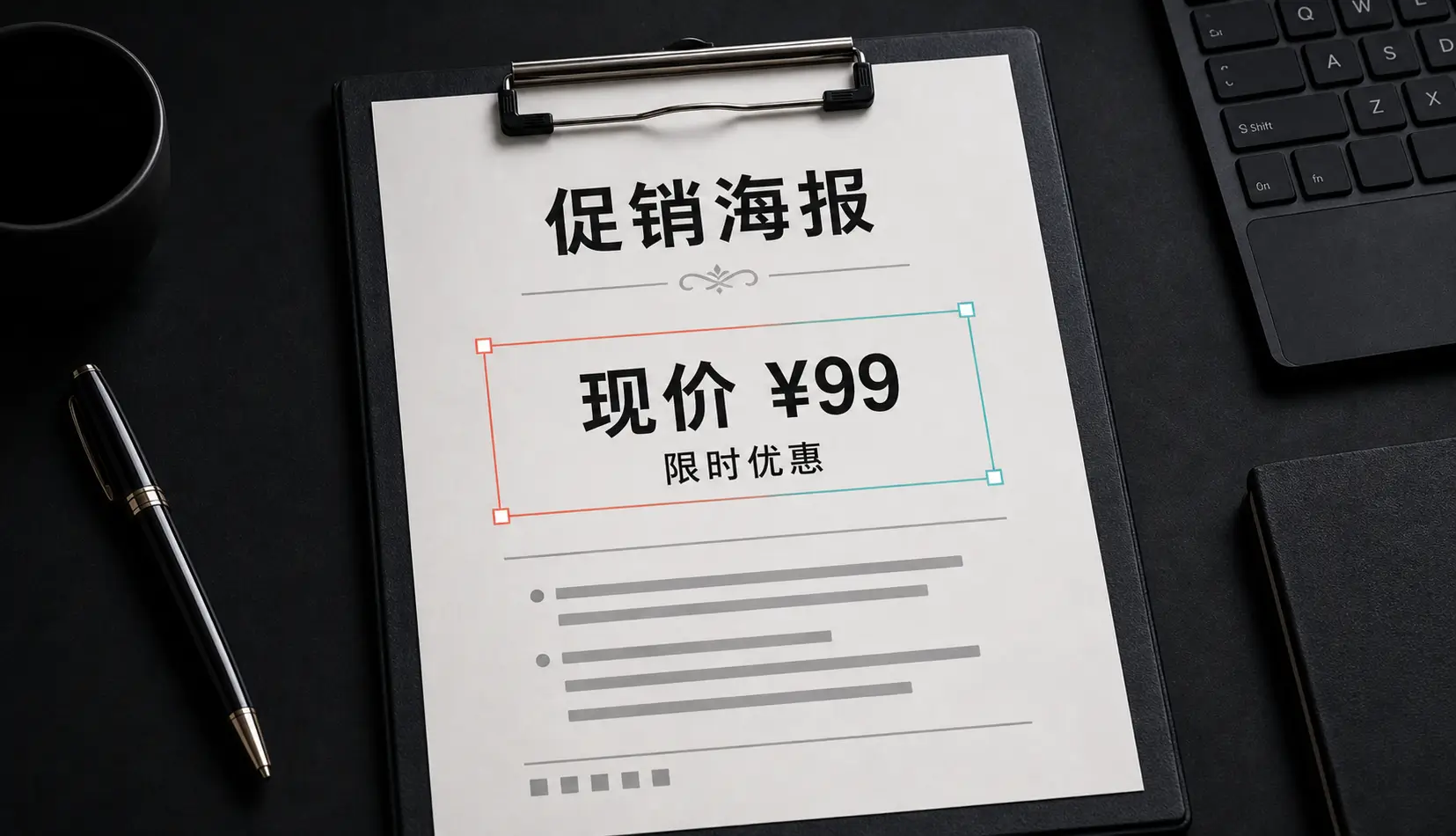
When removing text beats cropping
Cropping throws away the part of the picture you wanted to keep. Most of the time the text is sitting right on top of something useful: a product shot for a listing, a clean background for a slide, a photo of a street with a temporary sign in the way. Removing the text keeps the composition and only changes the part you care about.
Common jobs people use Qutu’s text remover for:
- Old dates and stamps printed in the corner of scanned photos.
- Captions and stickers on images you made yourself and want to reuse.
- Labels on mockups before you hand a design to a client.
- Prices and promos on your own product photos when an offer ends.
- Notes and handwriting on a printed page you want to share clean.
Removing vs. replacing
Removal and replacement are the same tool in Qutu. Select a block and clear it to erase the words, or type something new and the AI writes it in the original font, size and color. That means you can remove a line and add a new one in a single pass instead of jumping between apps.
Tips for the cleanest result
- Use the original file, not a compressed copy from a chat app — more detail gives the AI more to rebuild from.
- Select the whole block, including drop shadows or outlines, so no edge is left behind.
- Large text on a busy background? Run it once, then run a second pass on any leftover spot.
Use it responsibly
Edit images you own or have permission to change. Don’t use Qutu to alter identity documents, receipts, contracts or anything meant to prove a fact to someone else.